Google — Search Console & Analytics
Create a service account, then grant it access to your GSC and GA4 properties.
Create Google Cloud Service Account & Download JSON Key
Go to console.cloud.google.com. Select the Google Cloud project for your domain (or create one).
Enable the APIs: APIs & Services → Library. Search and enable both:
- Google Search Console API
- Google Analytics Data API
Create the service account: IAM & Admin → Service Accounts → Create Service Account. Give it any name (e.g. analytics-reader). Finish creation without assigning project-level roles.
Download the JSON key: Click the service account → Keys tab → Add key → Create new key → JSON. The file downloads automatically.
After creating the key, note the service account email shown in the console (format: name@your-project-id.iam.gserviceaccount.com). You will use this email in Steps 2 and 3. It also appears in the downloaded JSON file as client_email.
Grant Google Search Console Access
Go to search.google.com/search-console and select your property from the top-left dropdown.
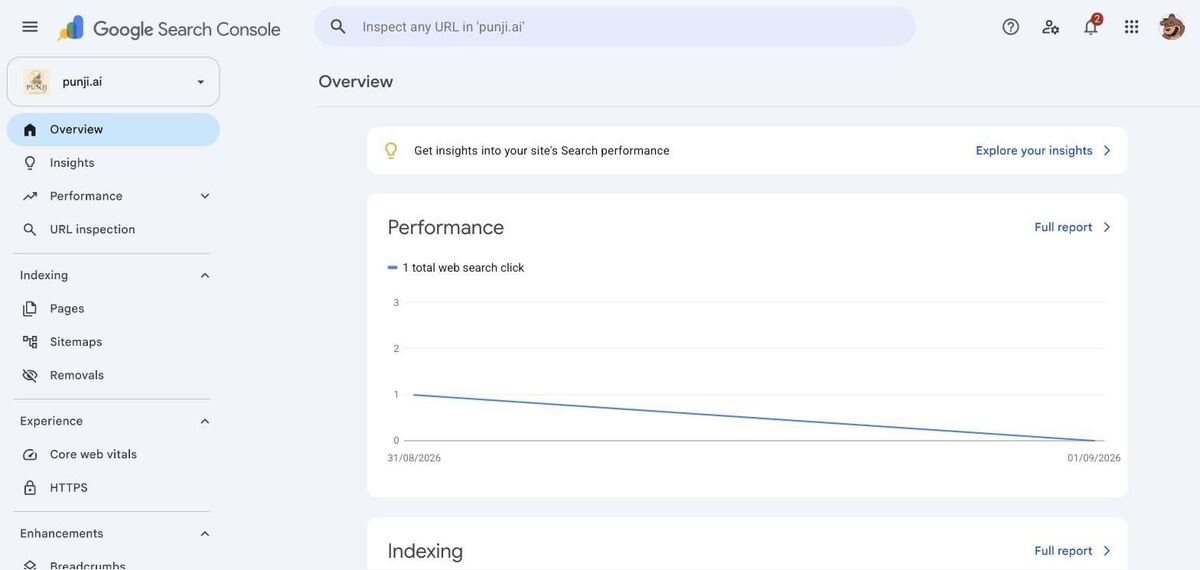
In the left sidebar go to Settings → Users and permissions → Add user.
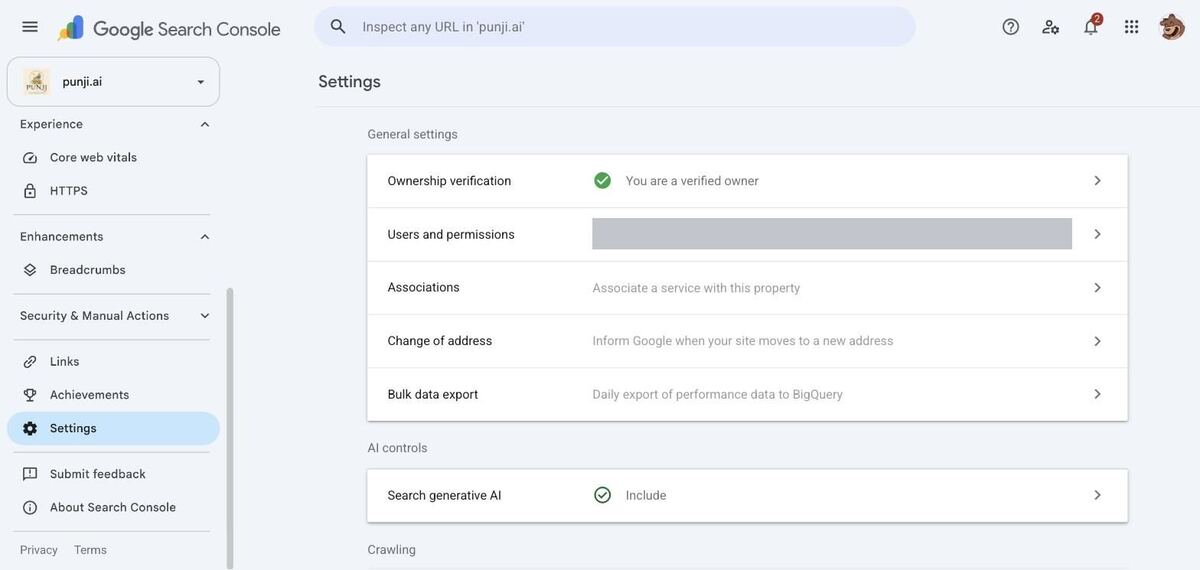
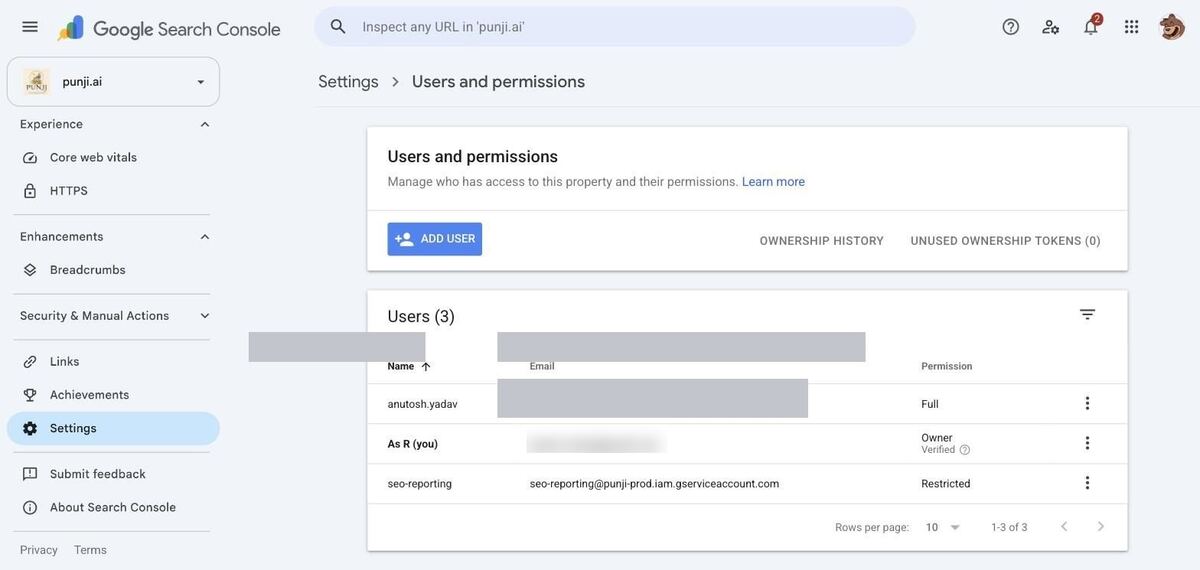
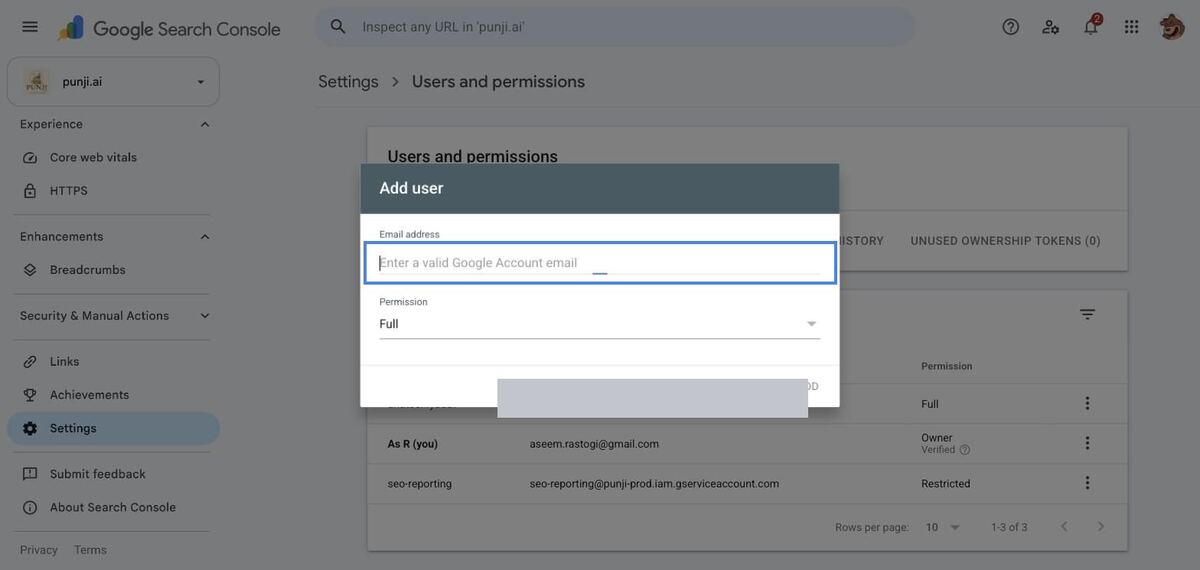
In the Email address field, enter your service account email from Step 1. Set Permission to Restricted. Click Add.
sc-domain:example.com (domain property) or https://example.com/ (URL-prefix property).Grant Google Analytics 4 Access
Go to analytics.google.com. Make sure the correct Account and Property are selected in the top-left. Click the gear icon at the bottom of the left sidebar.
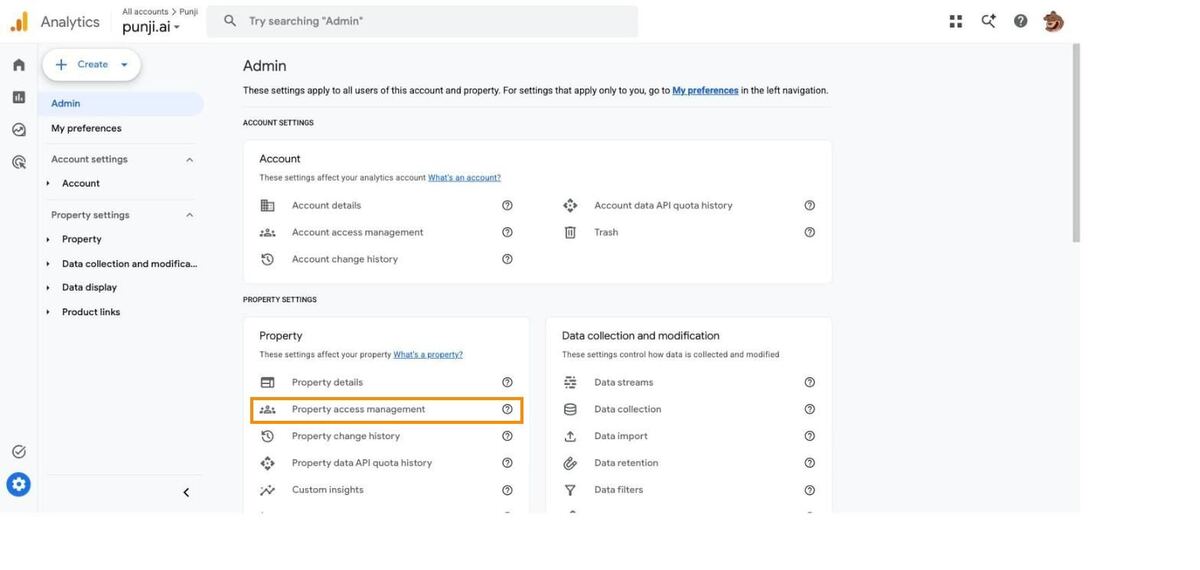
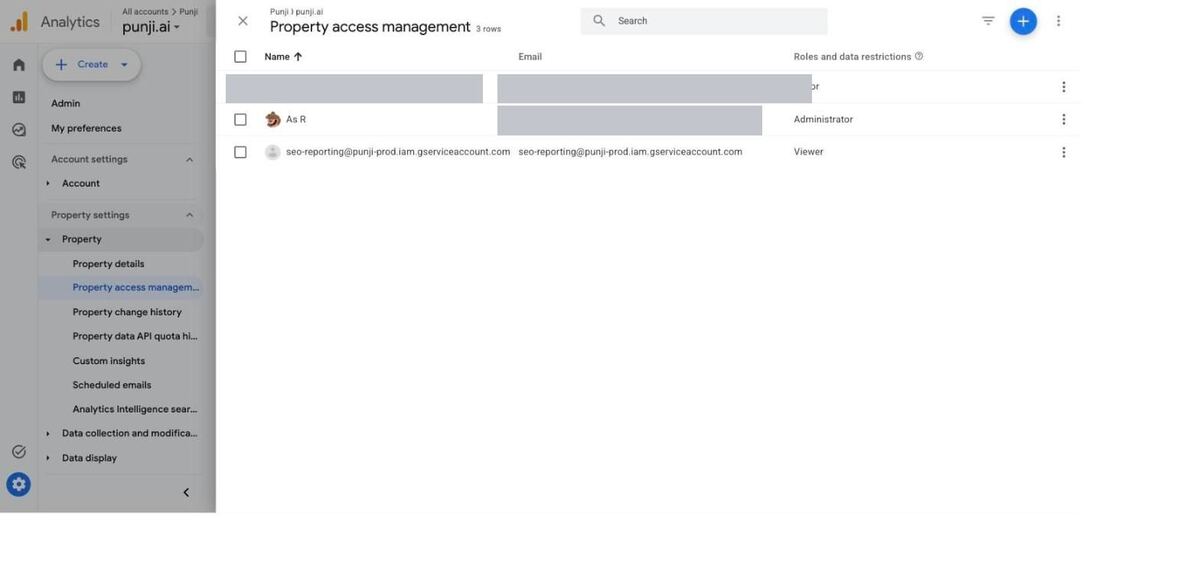
Under Property settings, click Property access management, then click + → Add users.
Enter your service account email from Step 1. Set the role to Viewer. Uncheck “Notify new users by email”. Click Add.
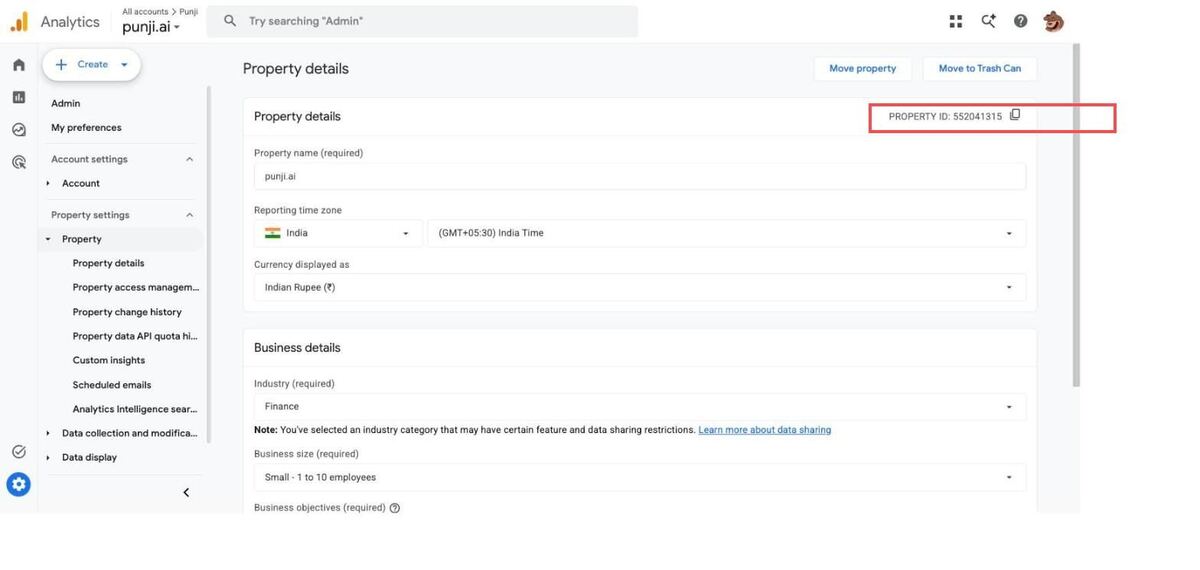
Find your Property ID: Admin → Property details. The numeric ID appears in the top-right corner.
Complete checklist — everything to send
| Item | Where to find it |
|---|---|
| Google Service Account JSON | GCP console → IAM & Admin → Service Accounts → Keys → Create JSON key |
| Google GSC property string | The property name used: sc-domain:example.com or https://example.com/ |
| Google GA4 Property ID | GA4 Admin → Property details → numeric ID top-right corner |
Also see the Cloudflare documentation for Zone ID, Account ID, and API token setup.